 World Wide Offices

Category: Articles
How to Recover LinkedIn Account If Hacked Or Lost Access
TABLE OF CONTENT :
‘‘Last week, I tried logging into my LinkedIn account to apply for a job. But I couldn’t remember the password, and I also found that I don't have access to the email I used to sign up. I felt completely stuck and didn’t know how to get back my id.’’
If you’ve ever been in a similar situation, you are in the right place.
In this guide, you will learn how to recover your LinkedIn account quickly.
Lets drive in.
Why LinkedIn Accounts Get Hacked or Restricted
When an account shows risky activity or breaks rules, LinkedIn may temporarily restrict or fully lock access.
Common reasons for account restrictions include:
- Multiple failed login attempts in a short time
- Logging in from new or unusual locations or devices
- Suspicious account behavior detected by LinkedIn’s security system
- Violation of LinkedIn community guidelines or terms of service
- Using automation tools, bots, or third-party extensions
- Sending too many connection requests or messages too fast
- Posting or sharing content that violates LinkedIn policies
- Account reported by other users
- Unauthorized access or hacking attempts
- Changes to profile details that trigger security checks
- Identity verification failure or incomplete verification
- Inconsistent or false personal information on the profile
What to Verify Before Beginning Account Recovery
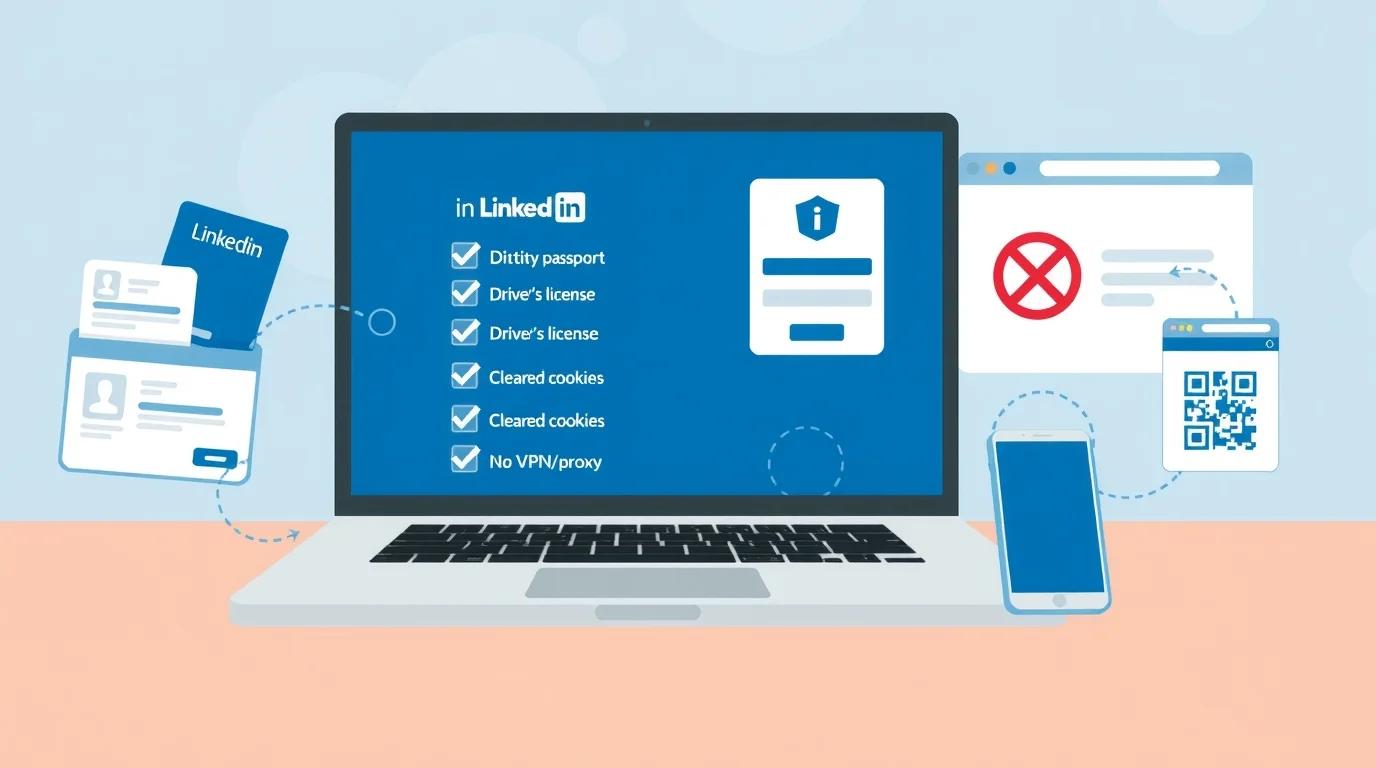
Before you start the LinkedIn account recovery process, it’s important to check a few key things to avoid complications or a permanent ban:
- Make sure the name on your LinkedIn profile matches your government ID.
- Turn off all third-party automation tools, browser extensions, or scrapers.
- Clear your cache and cookies and log out of LinkedIn on all devices to reset session activity.
- Avoid using a VPN or proxy during recovery.
- Have a clear photo of a current passport, driver’s license, or national ID ready.
- Recovery usually requires using a phone to scan a QR code for real-time identity verification via Persona.
- If you cannot provide an ID, check if you have access to the work email currently listed on your profile, which can sometimes be used for verification.
- Look for official notifications from LinkedIn in your inbox and spam folder. These often contain a Case ID or specific reasons for the restriction.
- Note your activity over the last 72 hours (number of connection requests sent) to provide a factual explanation if you need to appeal.
How to Recover LinkedIn Account Without Email Access
If you can not access the email address associated with your LinkedIn account, you can still recover access by verifying your identity with a government-issued ID.
Here is the process:
- Go to the LinkedIn sign-in screen and select Forgot password.
- Enter the email address or phone number you believe is associated with the account and click Next.
- When prompted to enter a verification code sent to your old email, click Can't access this email?. If multiple recovery options appear and you have none, select Don't have access to any of these?.
- On the next screen, enter a new, accessible email address you want to link to your account.
- If you are on a desktop, a QR code will appear. Scan it with your smartphone to continue the process on your mobile device.
- Upload a clear photo of a valid government-issued ID (passport, driver’s license, or national ID). In some regions, you may be asked to scan the NFC chip in your passport using your phone. You might be required to take a live photo of yourself to match the portrait on your ID.
Alternative Verification Methods
Phone Number - If you have a mobile number linked to the account, you can select the option to receive a verification code via SMS instead of email.
Workplace Verification - If the job listed on your profile is current and you still have access to your work email, you may be given an option to verify through that domain.
Affidavit of Identity - If you do not wish to provide a government ID online, you can print an Affidavit of Identity, have it notarized, and submit it to LinkedIn support.
Source - https://www.linkedin.com/help/linkedin/answer/a1377116
How to Recover Hacked or Compromised LinkedIn Account
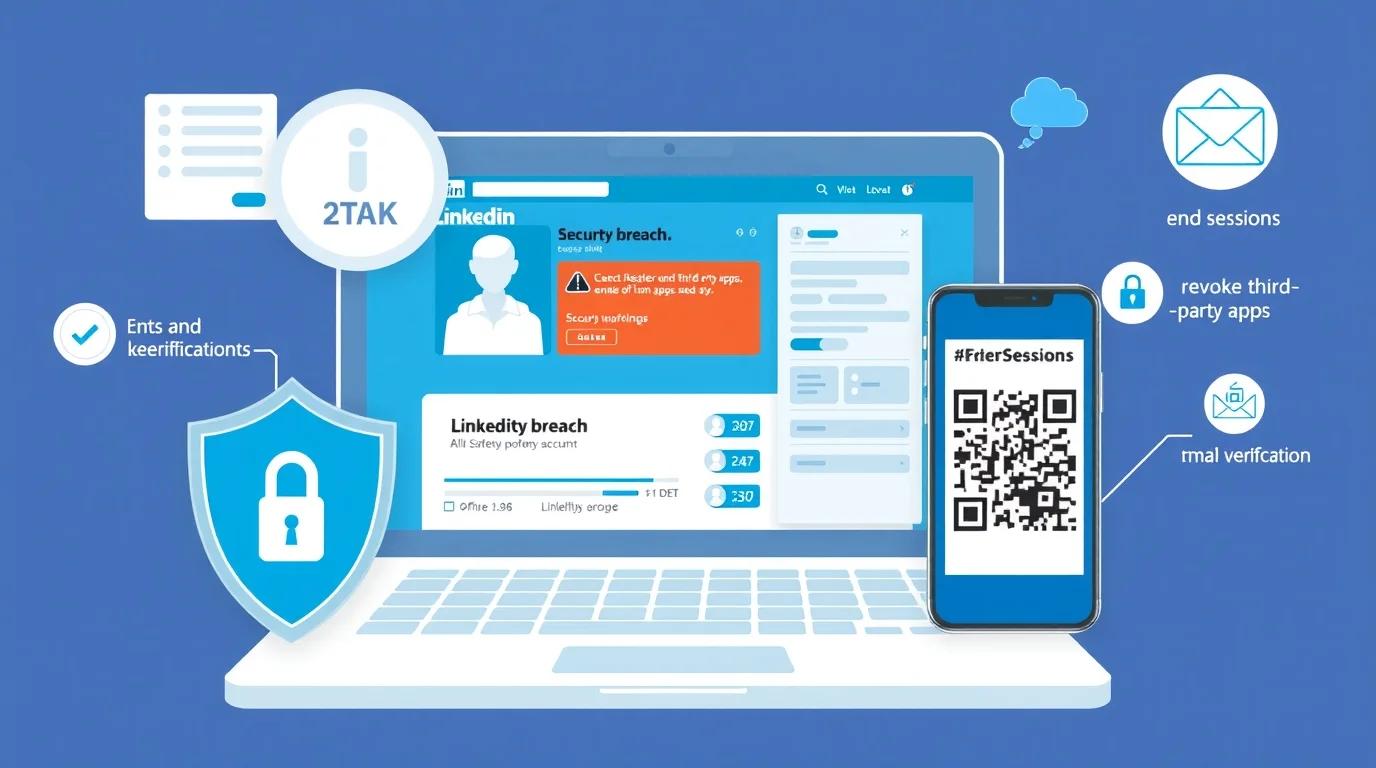
Follow these steps to recover your account safely:
01 # Immediate Actions (If Still Logged In)
If you can still access your account, take these steps immediately to lock out the intruder:
- Change your password to a strong, unique password (at least 12 characters with symbols) that you do not use for other sites.
- Go to Settings > Sign-in & security > Where you're signed in and select End these sessions for all unrecognized locations or devices.
- Activate 2FA in your security settings to require a code for future logins.
- Review and revoke access for any suspicious third-party apps in your settings.
02 # Recovery Process (If Locked Out)
If the hacker changed your password or email, follow the official recovery path:
- Report the Compromise - Use the Reporting Account Access Issue form immediately. This form can be submitted even if you cannot log in.
- Verify Your Identity - LinkedIn typically requires identity verification via Persona. You will need to scan a QR code with your smartphone and upload a clear photo of a valid government-issued ID (passport or driver's license).
- Provide a New Email - During the verification process, you may be asked for a new, secure email address to link to your account.
- Wait for Review - Identity verification and account restoration can take anywhere from 24 hours to over a week, depending on the severity of the hack.
Once access is restored, perform a security audit.
It's recommended to review your posts, messages, and connection requests. LinkedIn has a Compromised Account Cleanup tool to help reverse activities like spam messages or unauthorized invitations.
How to Recover Restricted or Suspended LinkedIn Account
To recover a restricted or suspended LinkedIn account, you generally need to follow an automated identity verification process or submit a formal appeal.
Here are the details.
01 # Automated Identity Verification
If your account is restricted due to security concerns or profile violations, you will usually be prompted to verify your identity.
- Log in to your account as usual.
- Follow the on-screen prompts to "Verify your identity."
- Use a smartphone to scan the provided QR code and upload a clear photo of a valid government-issued ID (passport, driver's license, or national ID card).
- You may be required to take a "selfie" to match your face with the ID portrait.
- LinkedIn typically reviews these submissions within 2 to 3 working days.
02 # Submit a Formal Appeal
If the automated process is unavailable or your account was permanently restricted for policy violations (such as automation tool use or content violations), you must file a manual appeal.
- Access the Support Form - Navigate to the LinkedIn Help Center and use the "Contact us" or "Create a support ticket" option.
- Direct Contact - You can email LinkedIn's appeal team at [email protected] or reach out to their support handle on X (formerly Twitter) @LinkedInHelp.
- Explanation - Provide a polite, concise explanation of why you believe the restriction was an error or state your commitment to complying with LinkedIn's Professional Community Policies moving forward.
03 # Recovery Alternatives
If you cannot or do not wish to provide a government ID, LinkedIn offers alternative verification methods:
If your profile lists a current employer, you may be able to verify your identity via a code sent to your official work email address.
You can print an Affidavit of Identity, have it signed before a Notary Public, and scan the notarized document to attach to your support case.
04 # Temporary Suspension Wait Period
In some cases, LinkedIn may issue a "warning" restriction.
Some temporary restrictions require you to wait 48 hours after your first login attempt before you can regain access.
After the waiting period, you must read and agree to comply with the platform's terms of service to unlock the account.
How to Recover LinkedIn Account Using Identity Verification
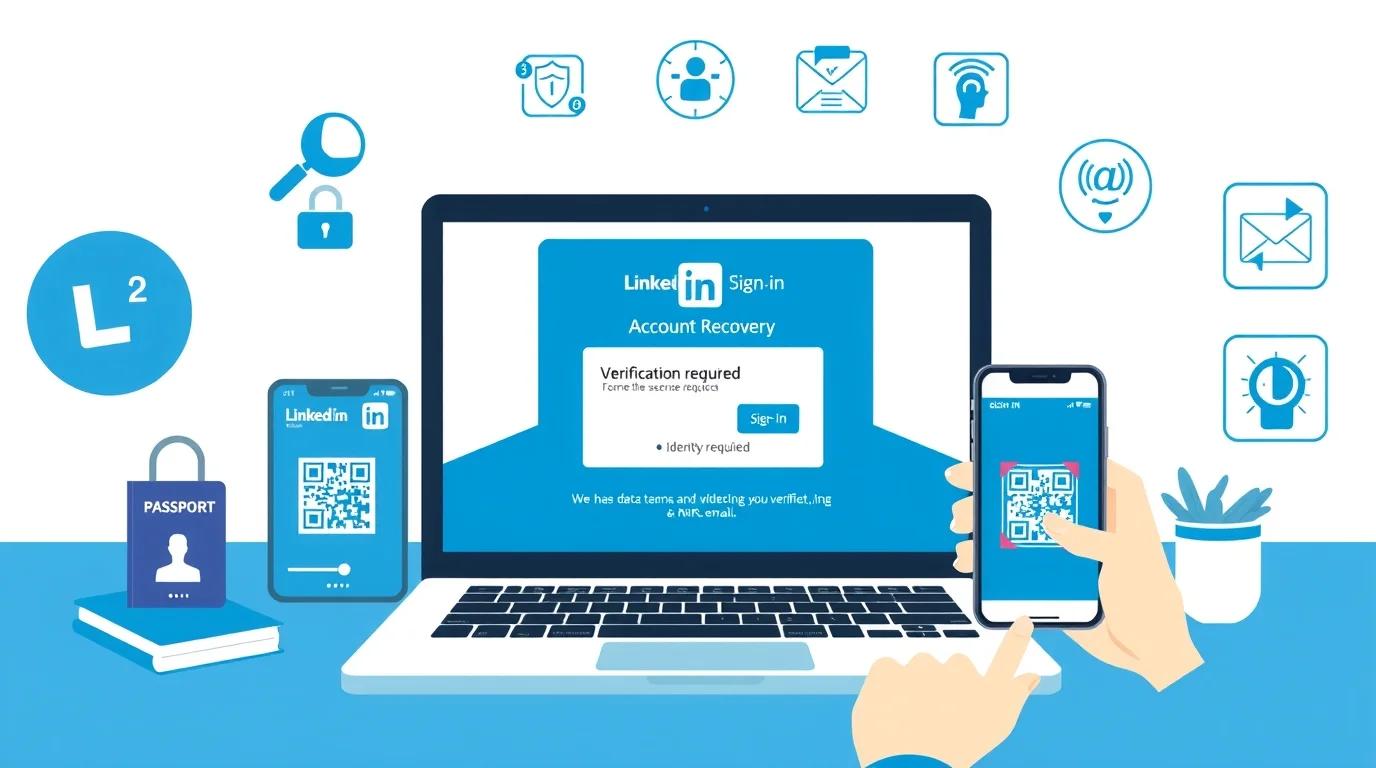
To recover your LinkedIn account using identity verification, follow these steps to prove ownership when you cannot access your email or phone, or if your account is restricted.
01 # Initiate Identity Verification
- Go to the LinkedIn Sign-in page and click Forgot password.
- Enter the email or phone number associated with the account.
- On the verification screen, select Can't access this email or Don't have access to any of these at the bottom.
- If on a desktop, you will see a QR code to scan with your smartphone to begin the verification process via Persona (LinkedIn's verification partner).
02 # Submit Required Documentation
LinkedIn typically uses the Persona system to verify your identity. You will need a valid government-issued ID (Passport, Driver’s License, or National ID).
- Take a Photo of your ID - Ensure all four corners are visible, the lighting is bright (no glare), and the text is legible.
- Biometric Scan - You may be prompted to take a "selfie" or scan your face to match the ID portrait.
- NFC Scan - If using a passport, you may be asked to scan the NFC chip by holding your phone against the passport.
- Share Data - After the scan, click Yes, share to send the verification results to LinkedIn.
03 # Alternative Verification Methods
If you cannot or do not want to provide a government ID, you can use these official alternatives:
Work Email Verification - If your profile lists a current workplace, LinkedIn may send a code to that specific work email address for recovery.
Affidavit of Identity - You can download an Affidavit of Identity, have it signed by a Notary Public, and upload the scanned document to your support case.
Source - https://www.linkedin.com/help/learning/answer/a1342692
How Long Does LinkedIn Account Recovery Take
Recovery generally takes between 24 hours and 14 business days, and it depends on the complexity of the issue and the verification method used.
Identity Verification (ID-based) - Most standard verifications using a government-issued ID (via Persona or CLEAR) are processed within 2 to 5 business days. In some specific cases, it can be resolved in as little as 24 hours.
Minor Temporary Restrictions - Restrictions triggered by suspicious activity or minor policy violations often lift automatically within 24 to 72 hours.
Complex or High-Security Issues - If your account was restricted for serious violations or involves multiple verification rounds, recovery can take 7 to 14 business days. In rare, highly complex cases, it may extend to 3–4 weeks.
What to Do If LinkedIn Account Recovery Fails
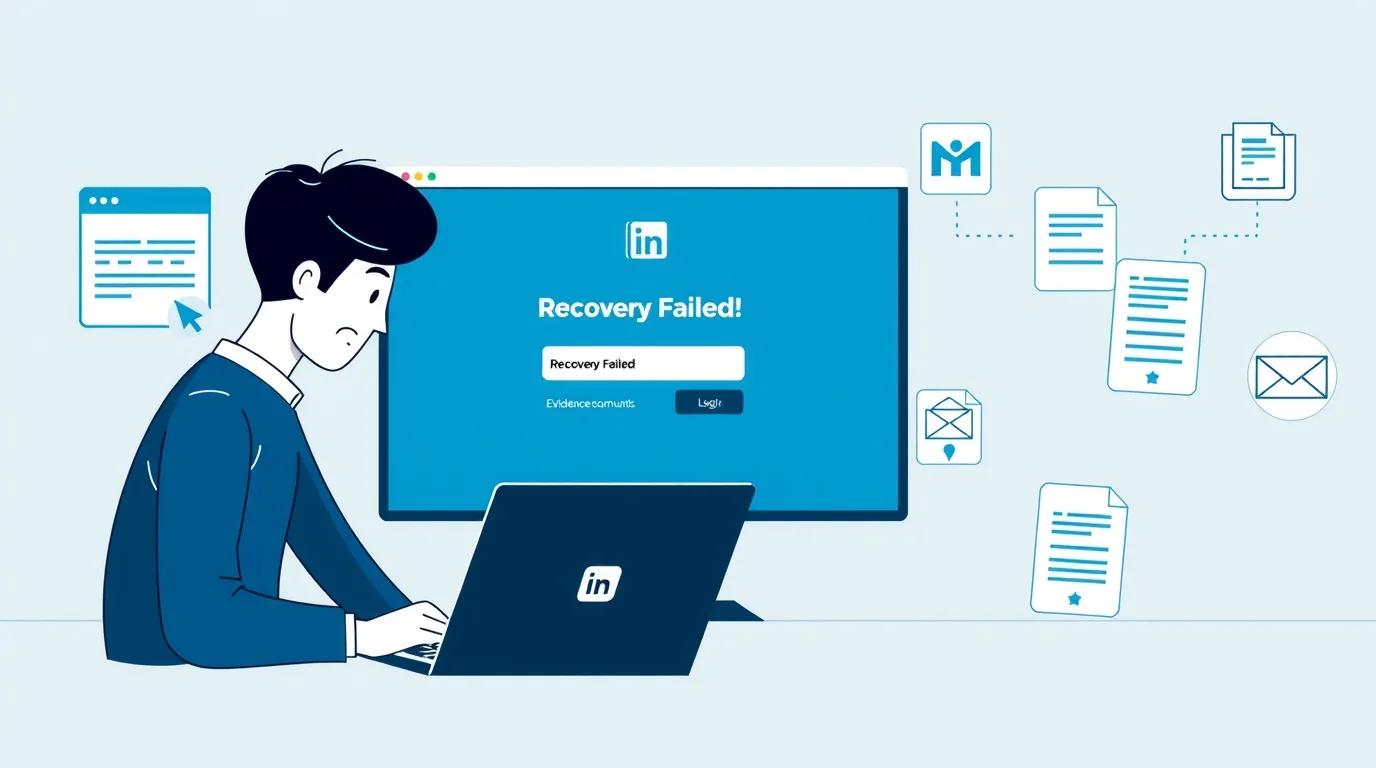
If initial automated LinkedIn account recovery or identity verification fails, you can follow an alternative recovery option.
Contact LinkedIn Support via Help Center
If you are a Premium subscriber, you have access to Live Chat in English via the LinkedIn Help Center. If you are not a Premium user but the account is critical, some users temporarily upgrade to a new account (though this is risky) to speak with an agent about the restricted one.
- Go to LinkedIn Help Center - https://www.linkedin.com/help/linkedin
- Scroll to the bottom and click “Contact Us” or “Create a support ticket”
- Choose the category like Account Access / Login Issues / Account Restricted
- Explain the situation in detail (error messages, email issues, failed ID verification) and submit.
Provide detailed evidence when filling a support form or replying to LinkedIn:
- Your full name as on LinkedIn
- The email address/phone number you used
- Screenshots of recovery errors
Mention that you already tried ID verification and got a failure to give support more context, and increase your chance of manual review.
Tips to Prevent LinkedIn Account Loss in the Future
To protect your professional asset from future restrictions or hacking, follow these essential security and activity best practices.
- Enable Multi-Factor Authentication (MFA). Use an authenticator app (like Microsoft Authenticator) instead of just SMS, as it is more secure against SIM-swapping attacks.
- After setting up MFA, download and store your one-time recovery codes in a secure place (like a password manager). These are your "final line of defense" if you lose your phone.
- Make sure at least two active email addresses (one personal, one work) and a current phone number are linked to your account. This prevents permanent loss if your primary work email is deactivated.
- LinkedIn supports passkeys, which allow you to log in with your device's biometric data (Face ID/Touch ID), which is highly resistant to phishing.
- Limit connection requests to 25 per day, maintain at least a 20% acceptance rate, and wait at least 15 seconds between manual actions.
- Do not rapidly browse dozens of profiles or use browser extensions that "scrape" data. These are easily detected and lead to immediate "LinkedIn Jail".
- Avoid performing the exact same sequence of actions at the same time every day.
- Use LinkedIn’s proactive verification tools (like CLEAR or Persona) to add a "Verified" badge to your profile, which increases your "trust score" with the algorithm.
- Ensure your LinkedIn name exactly matches your government ID. If you use nicknames or special characters, they can trigger automatic identity flags.
- Accounts that post at least three times per week and receive meaningful comments are 67% less likely to be restricted, as they are flagged as "trusted creators".
- Log in from consistent devices and locations whenever possible. Frequent IP changes, VPN hopping, or rapid country changes can trigger security checks. If you travel often, keep MFA enabled and use trusted devices to reduce the risk of temporary or permanent restrictions.
How To Change Email On Linkedin
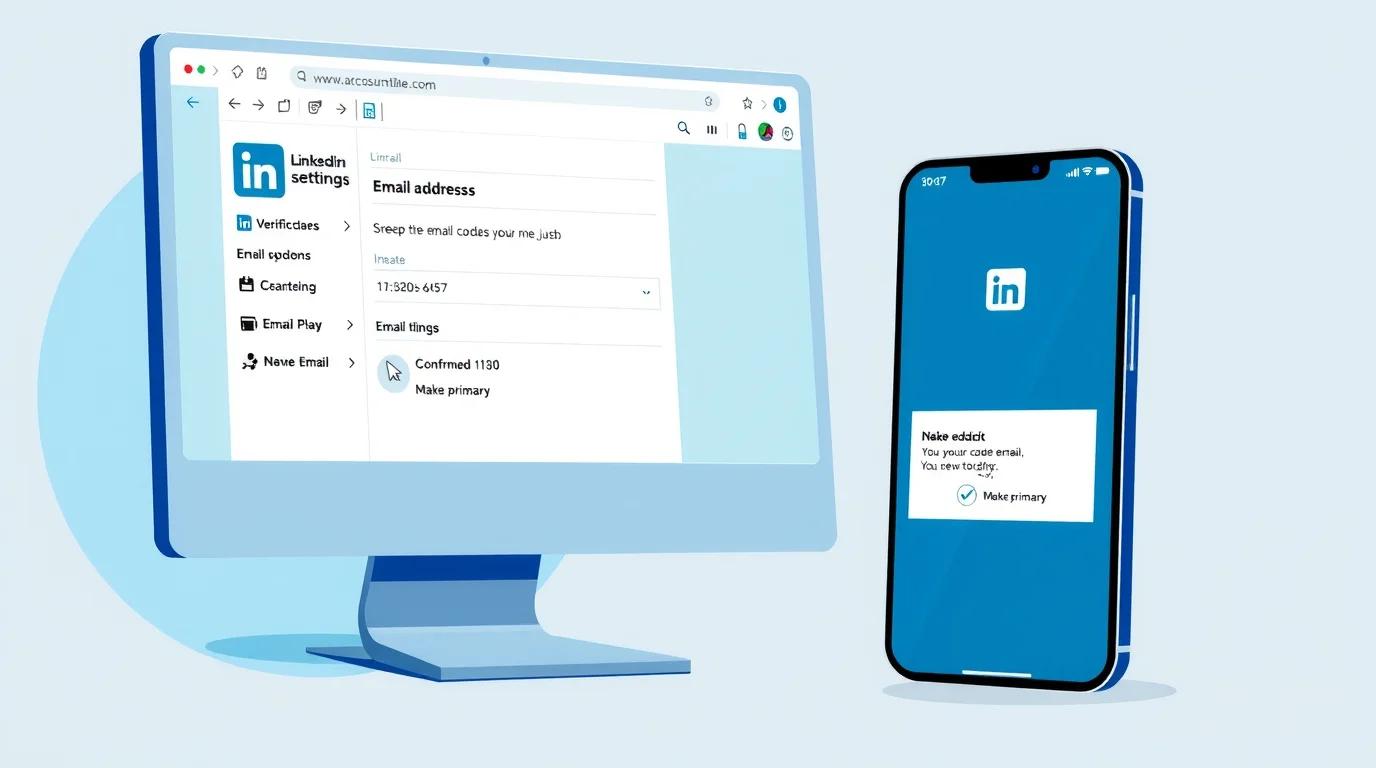
On Desktop
- Click the Me icon at the top of your homepage and select Settings & Privacy.
- Click Sign in & security in the left sidebar, then select Email addresses.
- Click Add email address. For security, you may be prompted to enter a 6-digit code sent to your current primary email or your LinkedIn password.
- Enter the new email address and click Submit. Check the inbox of the new email for a confirmation link from LinkedIn and click it to verify.
- Return to the Email addresses settings page. Click Make primary next to the newly verified email.
- Once the new email is primary, you can click Remove next to your old address to delete it.
On Mobile App
- Tap your profile picture in the top left, then tap Settings.
- Tap Sign in & security, then select Email addresses.
- Tap Add email address, enter the new address and your password, then tap Submit. Open your email app to click the verification link sent by LinkedIn.
- In the app's Email addresses menu, tap the new email and select Make primary.
How To Contact Linkedin Support
To contact LinkedIn support, you must primarily use their digital ticketing system or the Help Center, as they do not provide a general customer service phone number.
Official Support Ticket (Best for most issues)
This is the standard way to get a human response via email.
- If Logged In - Go to the LinkedIn Help Center, click "Get help from us," then select "Other" and search for your topic. If no answer is found, click "Create a support ticket" at the bottom of the page.
- If Logged Out - Use the LinkedIn Login Help form to report issues like hacked accounts or lost access without signing in.
Live Chat & Phone (Premium Members Only)
- Live Chat - Premium subscribers can access a live "Help Assistant" in the Help Center. This is only available in English.
- Phone Call-Back - Some Premium members may have an option to request a phone call from a consultant through the Help Assistant.
- X (Twitter) - Tag or message @LinkedInHelp. They are often faster at escalating cases that have stalled in the ticketing system.
Business-Specific Support
Advertising/Marketing - Use the Marketing Solutions Help Center to access specialized chat or web forms.
Talent/Recruiter - Sales inquiries can call 1-855-655-5653, but existing Recruiter customers should use the "Contact Us" option within the Recruiter Help Center.
LinkedIn never charges for support. Avoid websites or search results claiming to offer a "LinkedIn Support Number" for a fee; these are common scams designed to steal your credentials.
Frequently Asked Questions
Can I recover my LinkedIn account if I no longer have access to both my email and phone number?
Yes. You can recover your account by verifying your identity with a government-issued ID or a work email listed on your profile.
Is it possible to recover a permanently restricted LinkedIn account?
Recovery is difficult but possible if you file a manual appeal and show compliance with LinkedIn policies.
How many times can I attempt LinkedIn identity verification before my case is closed?
LinkedIn does not publicly limit attempts, but repeated failed verification may delay or complicate recovery.
Will creating a new LinkedIn account affect my chances of recovering the old one?
No, but avoid linking the new account to your old email or phone until your old account is restored.
Does changing my IP address or device during recovery reduce my chances of getting my LinkedIn account back?
Yes, frequent changes can trigger security checks. Use a consistent device and location whenever possible.
Can LinkedIn permanently delete my account data during a long restriction period?
LinkedIn may delete inactive or policy-violating accounts, so start recovery promptly to avoid permanent loss.
What happens to my LinkedIn Premium subscription if my account is restricted or suspended?
Your Premium subscription pauses until you regain access. Once restored, it usually resumes automatically.
Can employers or recruiters see that my LinkedIn account was previously restricted?
No, LinkedIn does not display restriction history on your profile. Only LinkedIn internal systems track it.
Is it safe to upload my government ID to LinkedIn, and how long does LinkedIn store it?
Yes, it is safe. LinkedIn stores verification documents securely and only keeps them as long as needed for account recovery.
On a Final Note
Losing access to your LinkedIn account can feel like hitting a dead end, especially when job opportunities and professional connections hang in the balance.
The good news is that most accounts can be recovered if you follow the right steps.
If you’ve tried everything and still can’t log in, TechForing can help. We specialize in LinkedIn hack recovery and assist you step by step to get your account back safely.